
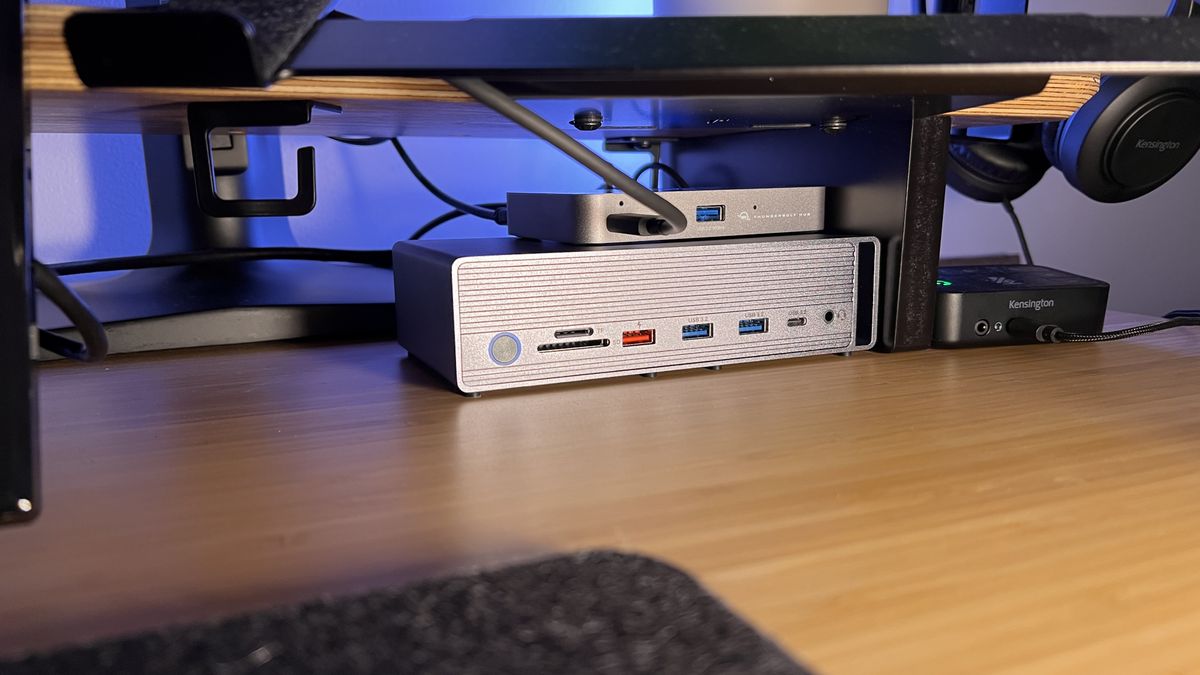
A modern workstation often requires more screen space than a single laptop or desktop display can provide. Whether you are working with spreadsheets, designing graphics, managing business applications, editing documents, or handling multiple browser windows, dual monitors can make everyday tasks more efficient. However, connecting two external displays while maintaining access to other peripherals can become complicated without the right equipment. This is where a Windows docking station for dual monitors can make a significant difference.
A docking station acts as a central connection point between your Windows computer and multiple accessories. Instead of repeatedly plugging in individual cables for monitors, keyboards, mice, storage devices, networking equipment, and other peripherals, you can connect them through one convenient hub. Choosing the right model requires attention to compatibility, display technology, connectivity, power delivery, and workstation requirements.
Understand Your Computer’s Connectivity
Before purchasing a docking station, examine the ports available on your Windows laptop or desktop. USB-C and Thunderbolt are common connection options, but not every USB-C port supports the same features. Some USB-C ports can transfer data and video while others may support only data or charging.
If your laptop supports Thunderbolt or USB4, you may have access to higher bandwidth and more flexible display configurations. Standard USB-C systems can also work well, but their capabilities vary considerably.
Check your computer manufacturer’s specifications to determine whether the available port supports DisplayPort Alt Mode, Thunderbolt, USB4, or another video-output standard. This simple step can prevent compatibility problems after purchasing a dock.
Check Dual-Monitor Support
The primary purpose of a Windows docking station for dual monitors is to operate two displays reliably. However, dual-monitor support does not automatically mean that every dock can deliver the resolution or refresh rate you want.
For example, a basic dock may support two Full HD monitors, while a more advanced model may handle two 4K displays. Some docks can support high refresh rates, while others are optimized primarily for office productivity.
Consider the specifications of your existing monitors before making a decision. If both screens are 4K, choose a dock specifically designed to support two 4K displays at your desired refresh rate. If you use standard 1080p monitors for office applications, you may not need the additional expense of a premium model.
Consider Display Connections
Monitor connectivity is another important factor. Depending on the docking station, available video outputs may include HDMI, DisplayPort, USB-C, or combinations of these.
DisplayPort is widely used for computer monitors and can support high resolutions and refresh rates. HDMI is particularly convenient when your displays already use HDMI cables. Some docking stations provide two identical video ports, while others combine different standards.
If your monitors use different connection types, a dock with multiple output standards can make setup easier. You should also check whether the dock requires adapters for your specific monitors.
Think About Resolution and Refresh Rate
Resolution determines how much visual detail appears on the screen, while refresh rate determines how frequently the display updates. For office work, productivity, research, and general business tasks, standard resolutions and refresh rates are usually sufficient.
Creative professionals, developers working with large interfaces, and users who enjoy smoother animations may prefer higher refresh rates and resolutions.
A docking station’s maximum resolution should always be evaluated for two displays simultaneously rather than assuming that the maximum specification applies to both screens at once. Bandwidth limitations can affect what is possible when multiple monitors and peripherals are operating together.
Evaluate USB Ports
A good workstation usually includes more than monitors. You may need a keyboard, mouse, external SSD, webcam, printer, USB headset, or other accessories.
Look at both the number and type of USB ports on a docking station. USB-A remains useful for traditional accessories, while USB-C can provide faster data transfer and compatibility with newer devices.
If you regularly transfer large files, pay attention to the supported USB data speeds. A dock with several ports is convenient, but port quantity alone should not determine your choice. Consider how you actually use your workstation.
Don’t Overlook Ethernet Connectivity
A stable internet connection can be important for professionals who work with cloud applications, remote systems, video conferences, large file transfers, or company networks.
Many docking stations include an Ethernet port, allowing your Windows computer to connect to a wired network through the dock. This can provide a practical alternative to relying entirely on Wi-Fi.
If your workstation is located in a fixed position, Ethernet connectivity can be particularly valuable. It also reduces the number of separate adapters and cables required on your desk.
Examine Power Delivery
Power delivery is another major consideration for laptop users. Some docking stations can supply power to a compatible laptop through the same cable used for data and display connections.
This allows you to connect your laptop to the dock and receive charging while using your external monitors and peripherals. However, docking stations vary in how much power they can provide.
Check the wattage supported by the dock and compare it with your laptop’s charging requirements. High-performance laptops may require substantially more power than lightweight productivity notebooks.
Consider Compatibility With Windows
Although many docking stations are marketed for Windows computers, compatibility can vary depending on the laptop model, operating system, graphics hardware, and connection technology.
Some docks use DisplayLink technology, which can provide additional display flexibility through USB connections. Other docks rely on native video protocols such as DisplayPort Alt Mode or Thunderbolt.
Native video support can offer a straightforward experience when your computer already supports the required standards. DisplayLink-based solutions may provide additional flexibility, but they can require software or drivers.
Always check the manufacturer’s compatibility information and supported Windows versions before purchasing.
Look at Driver and Firmware Support
A docking station is not simply a collection of physical ports. Its internal firmware and drivers can affect performance and reliability.
Manufacturers may release firmware updates that improve compatibility, fix bugs, or enhance stability. Before buying, consider whether the manufacturer provides clear instructions and ongoing support for firmware and drivers.
This is particularly important for professional workstations where unexpected display disconnections or peripheral problems can interrupt productivity.
Match the Dock to Your Workstation
Your ideal docking station depends heavily on your workflow. A professional working mainly with email, documents, spreadsheets, and web applications may need two reliable displays, Ethernet, several USB ports, and charging support.
A designer or video editor may place greater importance on high-resolution displays, fast external storage, and greater bandwidth. A developer may prioritize multiple displays, wired networking, and a large number of USB ports.
Instead of choosing a dock based solely on its number of ports, create a list of everything you currently connect to your computer. Then choose a model that accommodates those devices while leaving some room for future expansion.
Consider Desk Organization
A docking station can also help create a cleaner workstation. Rather than connecting multiple cables directly to your laptop, most accessories can remain attached to the dock.
This is especially useful if you frequently move your laptop between locations. A single connection can potentially restore your monitor, keyboard, mouse, Ethernet, storage, and other accessories.
Before purchasing, consider where the dock will sit and how long its host cable needs to be. Good cable management can make your workstation more comfortable and easier to maintain.
Balance Features and Cost
Premium docking stations often provide more display bandwidth, additional ports, higher power delivery, and advanced connectivity. However, buying the most expensive model is not always necessary.
The best approach is to identify the features you actually need. If you only require two Full HD monitors, USB accessories, and Ethernet, a mid-range dock may be sufficient. If you need dual 4K displays, high-speed storage, substantial power delivery, and advanced connectivity, investing in a higher-end model can be more appropriate.
Conclusion
Choosing a Windows docking station for dual monitors requires more than simply counting ports. You should evaluate your computer’s connection standards, monitor resolutions, refresh rates, video outputs, USB requirements, Ethernet needs, power delivery, Windows compatibility, and future expansion plans.
A well-matched docking station can turn a laptop or compact computer into a highly functional workstation with two external displays and a wide range of connected peripherals. By comparing specifications carefully and matching them to your actual workflow, you can create a cleaner, more convenient, and productive dual-monitor setup without paying for features you do not need.